 Synara
 Design
Set up Synara Design, build a first layout with an agent, edit it on the canvas, and export a PNG or PDF.
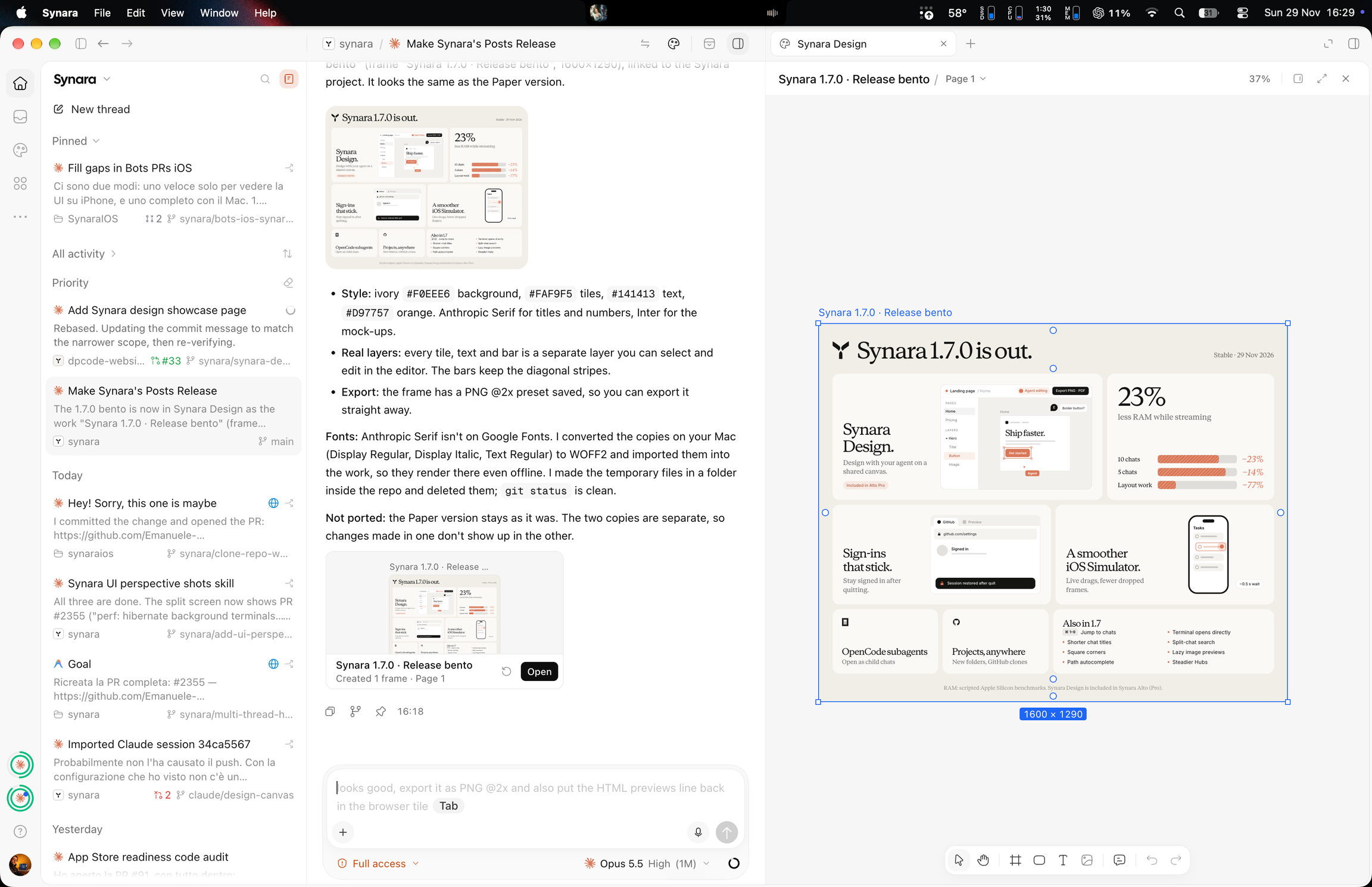
Synara Design is a shared canvas for creating and revising static designs with your coding agent. You can work next to the conversation or open the full editor.
What you need
- Synara 1.7.0 Stable or a Beta build that includes Synara Design.
- Synara Alto (Pro). Sign in with the subscribed Synara account on the computer that hosts the work. That host checks access for both the editor and agent tools.
- A chat with a working agent provider for the tutorial. You can also create and edit a canvas by hand.
If the canvas is locked, check Settings → Usage & limits → Billing on the host and confirm you are signed into the subscribed account. You can compare plans on Synara Pricing.
Tutorial — design a settings screen
1. Give your agent a brief
Open a project chat and send this example brief.
Create a Synara Design canvas named Account settings.
Add one 1440 × 960 desktop frame with a sidebar and an email preferences section.
Include a product updates toggle and a Save changes button.
Use editable text and layers. Leave the rest of the page empty.
When the agent first edits a canvas during the turn, Synara opens it beside the chat. The turn card in the conversation can reopen the work. Choose Open full size for more room, and Back to chat to return to the same canvas and page in the dock.
2. Edit the result yourself
Open Layers, select the settings frame, and expand it to select the heading or button. You can drag a frame to reposition it or resize it with its handles. Use the inspector to adjust spacing, text, fill, or borders for a selected layer.
Change the button label to Save preferences. Add a comment on the preferences section if you want to mark a point for review.
3. Ask the agent for a second pass
Send this follow-up in the same chat.
Keep the existing desktop frame and the Save preferences label.
Create a separate 390 × 844 mobile frame on the same page.
Move navigation above the form and use a full-width save button.
Open the new turn card to review what changed. Use the editor's Undo control for your own edits. Restore previous version on a turn card restores the canvas state from before that agent's changes. Check which turn you are restoring before using it.
4. Export the design
Select a frame and open Export in the inspector. Add an export row, choose PNG for an image or PDF for a review document, then export the selection. For multiple selected frames, add a PDF row and choose Export combined PDF to collect them in one file.
The canvas is a static design. Use the workspace editor when you are ready to implement the design as a working app.
Organize and reopen designs
Open Synara Design in the rail to find the Recent, Files, and Archive views. Use New canvas to start manually. A canvas can hold multiple pages, and each page can hold multiple frames. Use the item's menu to rename, duplicate, move, associate it with a project, or archive it. Archived work can be restored from Archive.
Open the Canvas button in a chat to return to its most recent linked design, or use the Open button on a specific turn card. The library lives on the host computer. Stable and Beta use separate app data.
If access or saving is interrupted
- Locked view. A host with no confirmed Alto access refuses design requests and hides the canvas tools from its agents. Your saved designs become available again when access returns. If a previously confirmed host temporarily loses contact with billing, its existing entitlement can remain usable for a limited offline grace period.
- Unsaved changes. If the canvas reports it is offline, keep the editor open and reconnect before leaving the work.
- Missing design. Check the host computer, Stable or Beta channel, and the library's Archive view. To open the exact work an agent changed, return to that turn's card.
The 1.7.0 source is Synara e4556f38bd55e9dc3481119c2ca0c89168c92501. See docs/design-canvas.md, apps/server/src/designCanvasAccess.ts, apps/server/src/wsCanvasRpc.ts, and apps/web/src/components/canvas.